Building Data Assets
A Building Data Asset defines a buildable object's UI information, rendering mode, preview configuration, placement rules, costs, effects, and initial Entity data.
Each building type usually corresponds to a separate asset, for example:
Before continuing, complete the Asset Manager Configuration.
Creating an Asset
Quick Creation
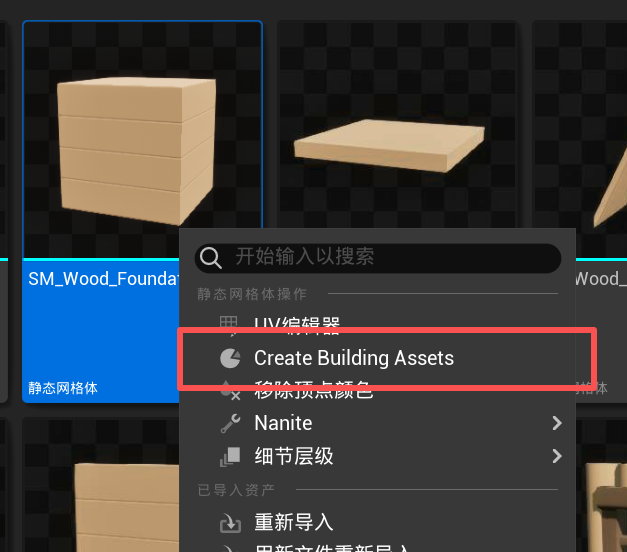
Right-click a Static Mesh and select the plugin-provided Create Asset option to quickly create:
Building Module InfoBuilding Data Asset
After creation, move the assets into a directory configured for scanning by Asset Manager.
Thumbnail Issues
Generated asset thumbnails may occasionally appear incomplete, partially black, or without the correct material rendering. This usually occurs because UE has not yet finished compiling the required materials, shaders, or lighting resources.
Manual Creation
In the Content Browser, select:
The following sections describe each setting in the order shown in the asset's Details panel.
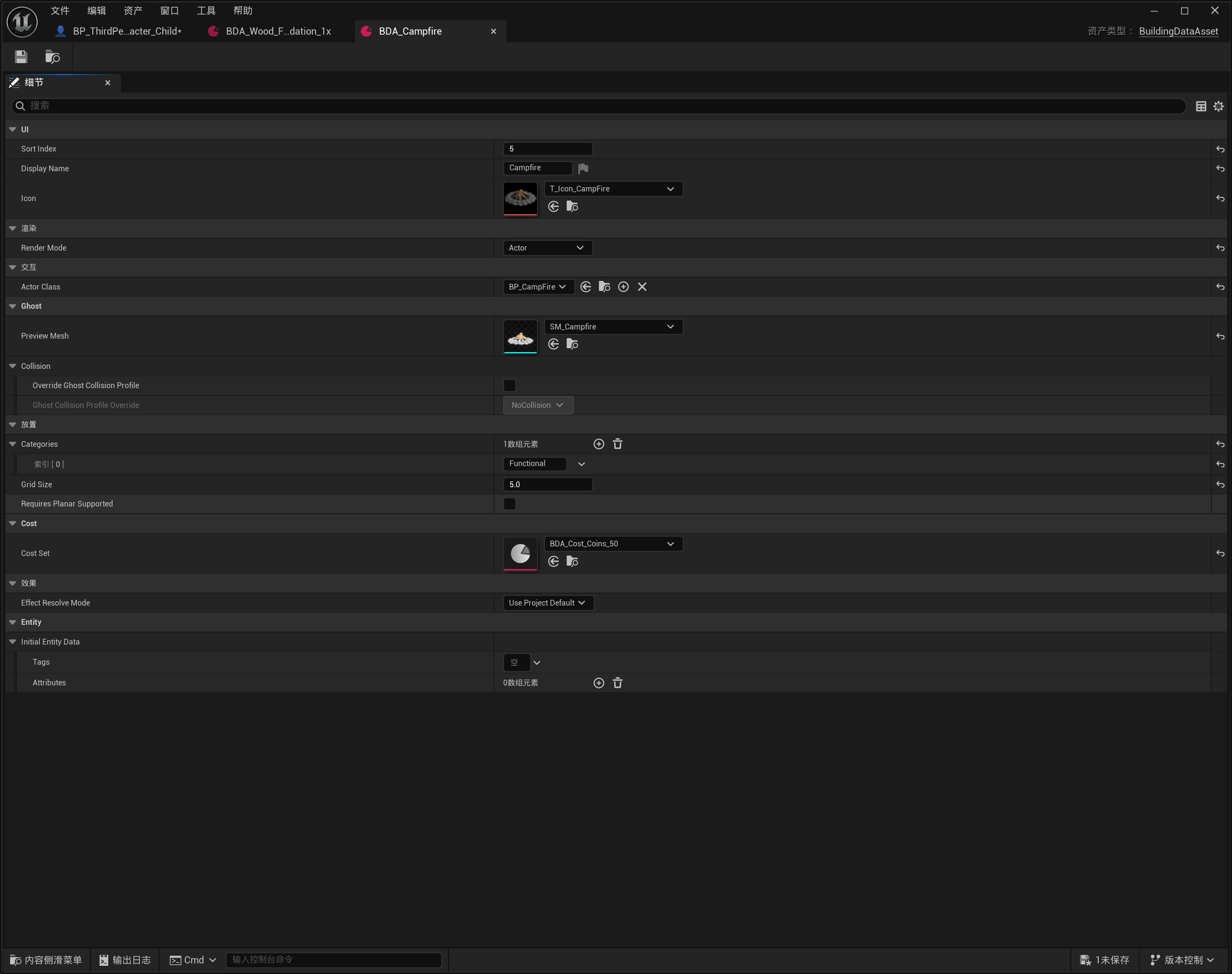
UI
Controls how the building is displayed in the building menu.
| Setting | Default | Description |
|---|---|---|
Sort Index |
0 |
The building's sorting value in the list. |
Display Name |
Empty | The localized building name displayed in the UI. |
Icon |
None |
The building icon displayed in the UI. |
Buildings with a lower Sort Index are generally displayed earlier. The final sorting behavior can also be defined by the project's UI.
Rendering
Render Mode
Determines how the building is rendered after placement is confirmed.
| Mode | Description |
|---|---|
HISM |
Uses an HISM Instance for rendering. Suitable for large numbers of repeated buildings such as foundations, walls, and roofs. |
Actor |
Spawns an independent Actor. Suitable for doors, containers, workbenches, and other buildings that require independent logic. |
The default value is:
Module
Displayed only when:
| Setting | Description |
|---|---|
Module Definition |
The Building Module Info asset used by the HISM building. |
Module Definition provides the final rendering Mesh, collision settings, snap points, and other module-level configuration.
After an HISM building is confirmed, the system uses the Mesh from this asset to create the corresponding HISM Instance.
Creating a Module Definition
In the Content Browser, select:
After creating the asset, assign it to Module Definition.
The main Building Module Info settings include:
| Setting | Description |
|---|---|
Mesh |
The Static Mesh displayed by the building in HISM mode. |
Build Collision Profile |
The collision configuration used by the generated HISM Component. |
Additional Component Tags |
Custom component tags added to the HISM Component. |
Exclude From World Support |
Determines whether the module is prevented from acting as a world support source for other buildings, such as decorative objects. |
Interaction
Displayed only when:
| Setting | Description |
|---|---|
Actor Class |
The Actor class spawned after the building is confirmed. |
Actor Class should inherit from the plugin-provided:
Buildings suitable for Actor mode include:
- Doors and containers
- Workbenches
- Interactive devices
- Buildings that require independent components or runtime logic
Ghost
Configures the preview used during building placement.
| Setting | Default | Description |
|---|---|---|
Preview Mesh |
None |
The Static Mesh used by the building preview. |
Preview Mesh is primarily used to:
- Display the building preview
- Calculate building bounds
- Perform placement collision checks
- Read Static Mesh Sockets
- Search for nearby snap targets
If an HISM building does not have a Preview Mesh, the system can fall back to the Mesh in Module Definition.
Actor buildings do not use Module Definition, so it is recommended to always configure a valid Preview Mesh.
Collision
Controls whether the current building overrides the project's default preview collision configuration.
| Setting | Default | Description |
|---|---|---|
Override Ghost Collision Profile |
Disabled | Determines whether the current building uses an independent Ghost Collision Profile. |
Ghost Collision Profile Override |
Not configured | The preview collision Profile used by the current building. |
After enabling:
the following setting is displayed and used:
When the override is disabled, the building preview uses the default Ghost Collision Profile from the project settings.
For more information, see Collision Configuration.
Placement
Controls the building's UI categories and basic placement rules.
| Setting | Default | Description |
|---|---|---|
Categories |
Empty array | One or more UI categories to which the building belongs. |
Grid Size |
5.0 cm |
The distance step used for grid movement and position adjustments. |
Requires Planar Supported |
Disabled | Determines whether the bottom of the building requires valid planar support. |
Categories
Categories is used to group buildings in the building menu.
A building can belong to multiple categories, for example:
This setting is used only for building lists and UI organization. It is not part of the snapping group system.
Grid Size
Grid Size specifies the distance step used when moving a building on a grid or adjusting its position.
Unreal Engine uses centimeters by default, so the default value:
represents:
A smaller value allows finer position adjustments, while a larger value increases the distance moved with each adjustment.
This parameter only provides the movement step for the building. Whether grid movement is enabled and when this value is used depends on the project's input and placement logic.
Requires Planar Supported
When enabled, the building must have valid planar support during placement, requiring its Mesh Box to rest on a plane.
This setting is suitable for:
- Furniture
- Workbenches
- Containers
- Functional buildings that require stable placement
Walls, hanging objects, and special buildings that do not require planar support can leave this setting disabled.
Cost
Configures the resources required to construct the building.
| Setting | Default | Description |
|---|---|---|
Cost Set |
None |
The cost configuration used by the current building. |
Cost Set can use different Cost Evaluators to integrate with:
- Inventory items
- Currency
- Character attributes
- Base storage
- Project-specific resource systems
When Cost Set is not configured, the building has no construction cost defined by the plugin's cost system.
For more information, see Building Cost System.
Effect
Controls how the current building uses project-default effects and building-specific effects.
| Setting | Default | Description |
|---|---|---|
Effect Resolve Mode |
Use Project Default |
Determines how the effect configuration is resolved. |
Effect Set Override |
None |
The building-specific Effect Set used by the current building. |
Effect Resolve Mode
| Mode | Description |
|---|---|
Use Project Default |
Uses only the default Effect Set configured in the project settings. |
Override Project Default |
Replaces the project-default configuration with the building-specific Effect Set. |
Play Default Then Override |
Plays the project-default effects first, followed by the building-specific effects. |
Disabled |
Disables building effects for the current building. |
Effect Set Override is displayed only in the following modes:
For more information, see Building Effects.
Entity
Initial Entity Data configures the initial data written to the Entity when the building is created.
| Field | Description |
|---|---|
Tags |
Gameplay Tags assigned when the building is created. |
Attributes |
Numeric attributes assigned when the building is created. |
Tags
Tags are restricted to the Building Gameplay Tag category and can be used to identify a building's type, material, or gameplay characteristics.
For example:
Attributes
Each Attribute contains:
| Field | Default | Description |
|---|---|---|
Attribute Tag |
Empty | The attribute identifier, restricted to the Building.Attr category. |
Value |
0.0 |
The initial value of the attribute. |
For example:
This data is written to Initial Entity Data when the Building Entity is created.
Configuration Checklist
If a building does not work correctly, check the following first:
| Issue | What to Check |
|---|---|
| The building does not appear in the building list | Check Categories, Asset Manager, and the UI data source. |
| The HISM building cannot be created | Check Render Mode and Module Definition. |
| The Actor building cannot be created | Check whether Actor Class is valid. |
| No building preview is displayed | Check Preview Mesh or the Module Mesh. |
| Preview collision behaves incorrectly | Check the Ghost Collision Profile. |
| The cost cannot be paid | Check Cost Set and the corresponding Evaluator. |
| Building effects do not play | Check Effect Resolve Mode and the Effect Set. |
| Initial data is missing | Check Initial Entity Data. |