Plugin Settings
After enabling ModularBuildingSystem, open:
This page configures the project-level default behavior of the building system.
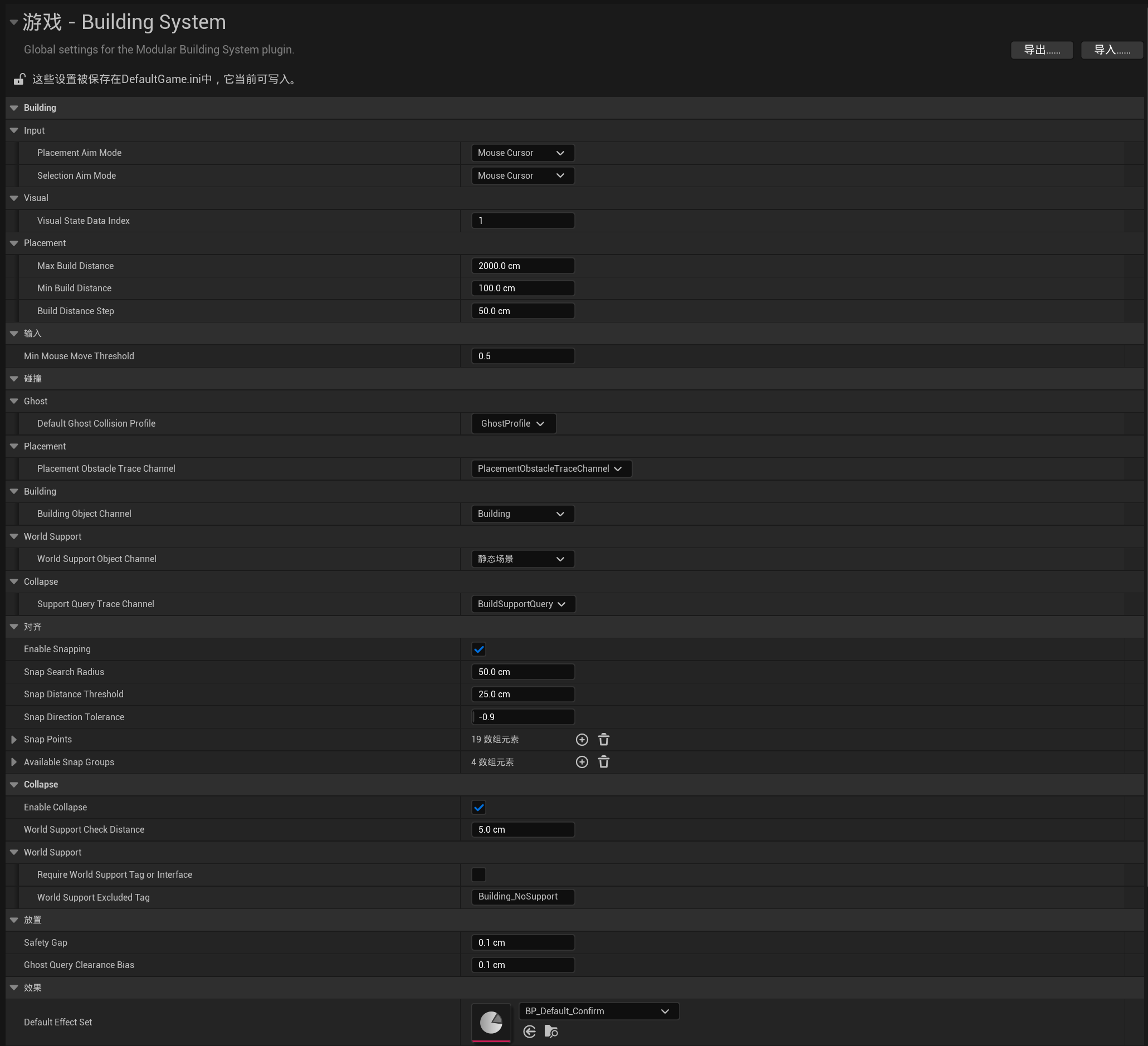
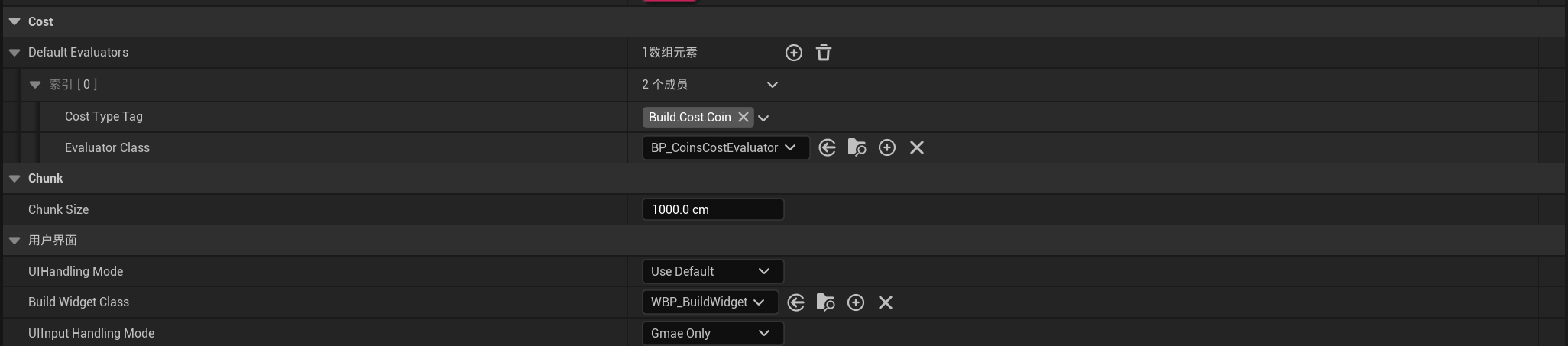
Note
This page only describes the purpose of each setting.
For detailed rules about snapping, costs, structural support, and other systems, see the corresponding documentation pages.
User Interface
These settings affect only the default building interface provided by the plugin. They do not disable the building APIs, placement logic, networking logic, or project-defined UI.
| Setting | Default | Description |
|---|---|---|
UI Handling Mode |
Use Default |
Determines whether the plugin creates and manages the default building UI. |
Build Widget Class |
Not configured | The Widget class used by the default building interface. |
UI Input Handling Mode |
Game Only |
The input mode used while the default UI is displayed. |
UI Handling Mode
| Mode | Description |
|---|---|
Use Default |
Creates and manages Build Widget Class. |
Disabled |
Does not create the default UI. The project provides its own interface. |
UI Input Handling Mode
| Mode | Description |
|---|---|
Do Not Modify |
Does not change the current input mode. |
Game and UI |
Both the game and UI receive input. |
Game Only |
Only the game receives input. |
UI Only |
Only the UI receives input. |
For building list configuration in the default building interface, see Building Data Assets.
Input
| Setting | Default | Description |
|---|---|---|
Placement Aim Mode |
Camera Center |
The aiming method used when placing or moving a building preview. |
Selection Aim Mode |
Mouse Cursor |
The aiming method used when selecting an existing building. |
Min Mouse Move Threshold |
0.5 |
The squared distance threshold between two Aim hit locations in world space. |
Aim Mode
| Mode | Description |
|---|---|
Camera Center |
Traces from the camera or the center of the screen. |
Mouse Cursor |
Traces from the mouse cursor position. |
Min Mouse Move Threshold reduces repeated queries when the target position changes only slightly. The value is compared against the squared distance between two Aim hit locations in world space, not a screen-space pixel distance.
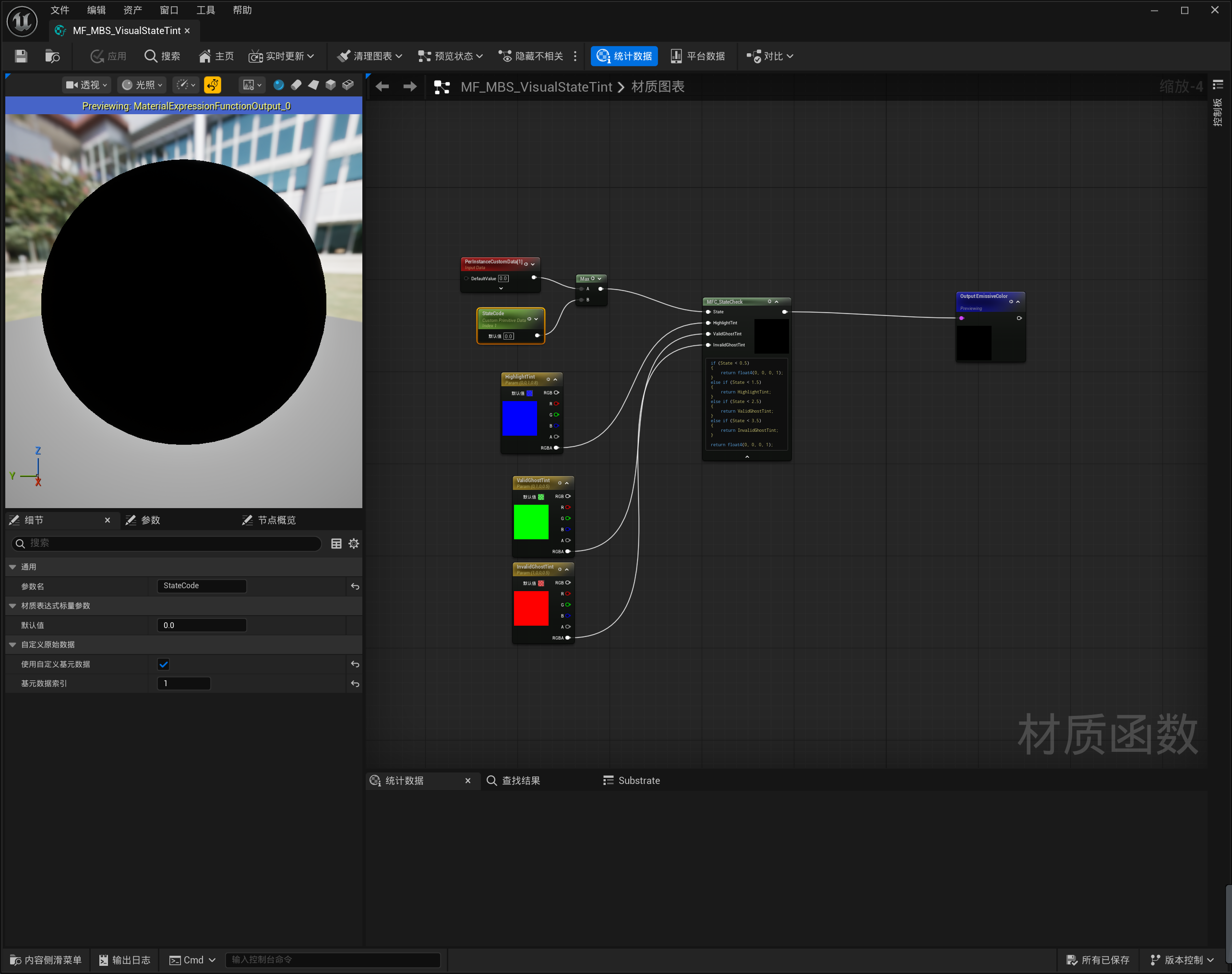
Visual
| Setting | Default | Description |
|---|---|---|
Visual State Data Index |
1 |
The custom data index used to store the building visual state. |
Visual State Values
| Value | State | Description |
|---|---|---|
0 |
Normal |
Normal state. |
1 |
Highlighted |
Selected or highlighted state. |
2 |
Valid Ghost |
The Ghost position is valid. |
3 |
Invalid Ghost |
The Ghost position is invalid. |
Different rendering modes use:
HISM:Per Instance Custom DataActor:Custom Primitive Data
When the plugin creates an HISM Component, it automatically ensures that Num Custom Data Floats is greater than Visual State Data Index.
Collision
| Setting | Default | Type | Description |
|---|---|---|---|
Default Ghost Collision Profile |
OverlapAllDynamic |
Collision Profile | The default collision configuration used by the Ghost. |
Placement Obstacle Trace Channel |
Visibility |
Trace Channel | Detects whether the current position is obstructed. |
Building Object Channel |
WorldDynamic |
Object Channel | Queries building components and HISM Instances. |
World Support Object Channel |
WorldStatic |
Object Channel | Identifies permanent world support objects. |
Support Query Trace Channel |
Visibility |
Trace Channel | Queries structural support relationships between buildings. |
An individual Building Data Asset can override the default Ghost Collision Profile.
Dedicated collision channels are recommended for production projects. For details, see Collision Configuration.
Snapping
| Setting | Default | Description |
|---|---|---|
Enable Snapping |
Enabled | Determines whether Socket snapping is enabled. |
Snap Distance |
50 cm |
The candidate search range and maximum accepted Socket distance. |
Snap Direction Tolerance |
-0.9 |
The maximum allowed Dot value between the connection directions of two Sockets. |
Snap Points |
Empty | Snap point definitions used by the project. |
Available Snap Groups |
Empty | Snap Groups available to the project. |
Snap Distance is used in two stages:
- The system searches for candidates around the Aim hit location and checks the distance between each Socket and the Aim point.
- The system expands the Ghost Box query range and checks the distance between each Socket and the edge of the Ghost Box.
The Overlap query only collects nearby components. The system still performs an exact distance check for every Socket.
For Socket, group, and direction configuration, see Snapping System.
Collapse
| Setting | Default | Description |
|---|---|---|
Require World Support Tag Or Interface |
Disabled | Determines whether world support objects must also have the specified Tag or implement the support interface. |
World Support Tag |
Building_SupportAnchor |
Explicitly identifies valid world support. |
World Support Excluded Tag |
Building_NoSupport |
Explicitly excludes an object from providing world support. |
Enable Collapse |
Enabled | Determines whether buildings without a valid support path are processed. |
World Support Check Distance |
5 cm |
The distance used when checking contact between a building and permanent world support. |
World Support Excluded Tag has higher priority than the support Tag and support interface.
For the complete process, see Structural Support and Collapse.
Placement
| Setting | Default | Description |
|---|---|---|
Max Build Distance |
1500 cm |
The maximum distance for building, selecting, moving, and editing buildings. |
Min Build Distance |
100 cm |
The minimum distance between the Ghost and the building initiator. |
Build Distance Step |
50 cm |
The distance moved each time the Ghost distance is adjusted. |
Build Height Step |
0.5 cm |
The distance moved each time the Ghost Height is adjusted. |
Safety Gap |
0.5 cm |
The safety gap preserved after position correction. |
Ghost Query Clearance Bias |
0.5 cm |
The clearance bias used by Ghost space queries. |
If there are no edge-collision issues or floating-point misclassifications, keeping the default tolerances is recommended.
Effects
| Setting | Default | Description |
|---|---|---|
Default Effect Set |
None |
The default effect collection used when a building does not specify an Effect Set. |
An individual Building Data Asset can use the default effects, override them, or disable effects.
For detailed configuration, see Building Effects.
Cost
| Setting | Default | Description |
|---|---|---|
Default Evaluators |
Empty | Mappings between Cost Type Gameplay Tags and Evaluator Classes. |
Evaluators are matched exactly by Cost Type Tag. Parent and child Tags are not matched automatically.
For detailed configuration, see Building Cost System.
Chunk
| Setting | Default | Description |
|---|---|---|
Chunk Size |
1000 cm |
The world-space side length of each building Chunk. |
Warning
Chunk ID is generated dynamically from the current world and building position. It should not be used as a stable identifier in save data.
For more information, see Chunk System.
Settings Reference
| Category | Setting | Default |
|---|---|---|
| User Interface | UI Handling Mode |
Use Default |
| User Interface | Build Widget Class |
Not configured |
| User Interface | UI Input Handling Mode |
Game Only |
| Input | Placement Aim Mode |
Camera Center |
| Input | Selection Aim Mode |
Mouse Cursor |
| Input | Min Mouse Move Threshold |
0.5 |
| Visual | Visual State Data Index |
1 |
| Collision | Default Ghost Collision Profile |
OverlapAllDynamic |
| Collision | Placement Obstacle Trace Channel |
Visibility |
| Collision | Building Object Channel |
WorldDynamic |
| Collision | World Support Object Channel |
WorldStatic |
| Collision | Support Query Trace Channel |
Visibility |
| Snapping | Enable Snapping |
Enabled |
| Snapping | Snap Distance |
50 cm |
| Snapping | Snap Direction Tolerance |
-0.9 |
| Snapping | Snap Points |
Empty |
| Snapping | Available Snap Groups |
Empty |
| Collapse | Require World Support Tag Or Interface |
Disabled |
| Collapse | World Support Tag |
Building_SupportAnchor |
| Collapse | World Support Excluded Tag |
Building_NoSupport |
| Collapse | Enable Collapse |
Enabled |
| Collapse | World Support Check Distance |
5 cm |
| Placement | Max Build Distance |
1500 cm |
| Placement | Min Build Distance |
100 cm |
| Placement | Build Distance Step |
50 cm |
| Placement | Build Height Step |
0.5 cm |
| Placement | Safety Gap |
0.5 cm |
| Placement | Ghost Query Clearance Bias |
0.5 cm |
| Effects | Default Effect Set |
None |
| Cost | Default Evaluators |
Empty |
| Chunk | Chunk Size |
1000 cm |